If you are seeing this message, “your Microsoft storage is full”, and you are thinking How to Clear Microsoft Cloud Storage? Then don’t worry. Microsoft gives you 5 GB of free cloud storage through OneDrive. And this can fill up very quickly with photos, emails, and videos. In this guide, I will teach you how to clear Microsoft cloud storage in just a few steps.
Table of Contents
What is Microsoft Cloud Storage?
Microsoft Storage is an online space where you can store your files, photos, and videos and access them from any device at any time. For example, if you keep important files like photos, videos, etc. on OneDrive, they will also be stored in the cloud. When you delete emails or OneDrive files, they stay in the recycle bin until they are manually removed or permanently purged. If you choose OneDrive for backup, then it will automatically count towards your total storage. But all files remaining in your storage recycle bin will be automatically deleted after 30 days.
How to Clear Microsoft Cloud Storage?
Step 1: Check What Takes up The Most Space
Before deleting, you need to know which one is taking up the most storage space. To see that follow step by step.
- 1. Go to “OneDrive”.
- 2. Tap on “Settings Icon“.
- 3. Click on “Settings“.
- 4. Tap “Manage Storage“.
There you will see Storage used, large files, and recyclebin file. This will help you to know what to remove.
Step 2: Deleting Large Files in OneDrive
Large files take up the most space in OneDrive, so you have to delete them first. Follow the instructions below to find and remove large files.
- Select “My files“.
- Tap ” File size“.
- Select “Larger to Smaller“
- Delete Unnecessary files.
Important: After deleting files, they are moved to the Recycle Bin, and storage is not freed yet.
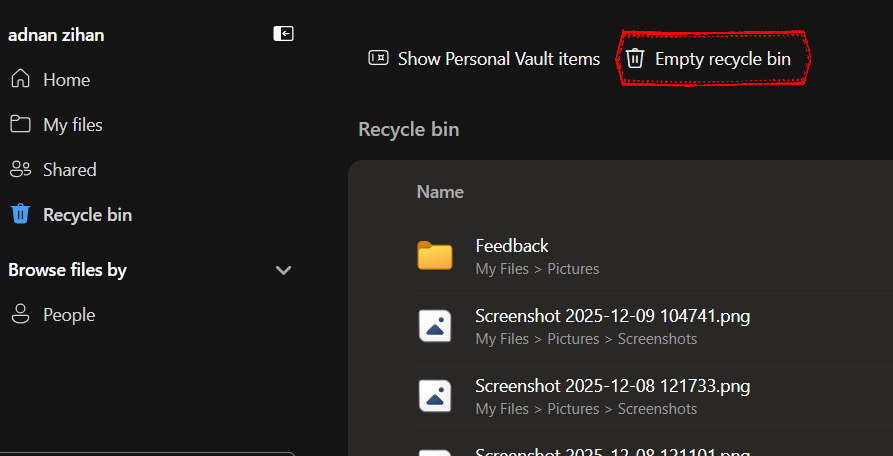
Step 3: Empty the OneDrive Recycle Bin
This is the most important step that many people forget.
- Go to”Recycle Bin” in OneDrive.
- Tap on “Empty Recycle Bin“.
- Confirm deletion.
Now your storage will actually be freed.
Step 4: Delete Outlook Email Attachments
Outlook emails, especially with attachments, use cloud storage
- Go to “Outlook.com“.
- Search for “hasattachments:yes“.
- Tap “Sort by size”.
After deleting:
- Go to “Deleted items“.
- Click “Empty Folder“.
Step 5: Remove Backup Files (If Enabled)
If your Phone or PC is backing up automatically:
- Go to “OneDrive“.
- Select “Settings“.
- Select “Backup“.
- Turn off folder backups.
Step 6: Remove Duplicate Files
Sometimes, some photos and videos are uploaded multiple times. To remove these duplicates:
- Manually Compare files.
- Use file sorting by name and size.
- Remove extra copies.
Step7: Check Shared Files
Click shared > Delete unnecessary shared file from your drive.
How to Free Up Microsoft Cloud Storage on Mobile
If you are using OneDrive on your phone:
- Open the “OneDrive” app.
- Tap “Me“.
- Tap “Storage“.
- Delete large files
- Empty the recycle bin.
Why is My Microsoft Storage Full Even After Deleting Files?
There are many common reasons:
- The recycle bin is full of unnecessary.
- Files still syncing.
- The shared file is still saved.
- Backup is still enabled.
- or Outlook deleted folder is not cleared.
After finishing all these, your Microsoft Storage should be cleared.
How Much Free Storage Does Microsoft Give?

- Free Plan: 5 GB
- Microsoft 365 Basic: 100 GB
- Microsoft Personal: 1TB
- Microsoft 365 Family: Up to 6GB (1TB per person)
Must Read: How to Delete Stickers on iPhone? You Added Accidentally
So, If you are wondering how to clear Microsoft storage, just remember that if you have large files, duplicate files and full of files in recycle bin. Just clear them. Apart from that, clearing the unnecessary files and Outlook attachment emails will also help to free storage is Microsoft.
How do I Empty Micropsoft Storage?
Go to OneDrive, then select files, delete unnecessary files, then go to the Recycle Bin, clear all deleted files, and if there are duplicate files, clear them too.